
As an architect or spatial designer, you know that lighting and atmosphere can make or break a 3D visualization. But how many times have you finished a render, uploaded it to your presentation platform, and realized it felt a little too dark, slightly washed out, or warmer than intended?
In the past, fixing these minor visual details meant heading back into your CAD or rendering tool adjusting light sources, waiting on a re-render, and re-uploading the file.
With Yulio’s Adjust Appearance Controls, you can bypass the re-rendering process altogether. You now have full control over the mood, clarity, and tone of your renders directly inside Yulio.
Here is a breakdown of how you can use these five key settings to polish your VR scenes and ensure your design looks its absolute best before client presentations.
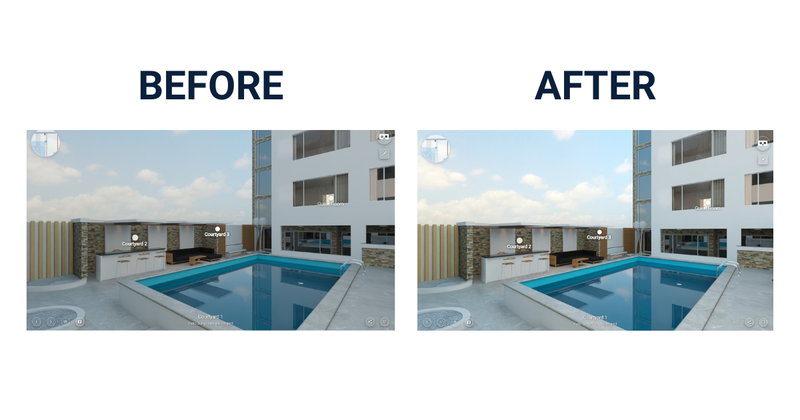
1. Exposure: Master Overall Scene Brightness
What it controls: The overall brightness of the scene.
Why it matters: Lighting conditions vary widely depending on the monitor, VR headset, or room environment your client is using. If a render feels under-lit or overly harsh, adjusting the exposure lets you lift or dial back the ambient light instantly.
Design Tip: Use Exposure to fix underexposed interior corners without over-saturating the lighter elements in your space.
2. Highlights: Restore Detail in Bright Areas
What it controls: The brightness of the lightest areas in the scene.
Why it matters: Direct sunlight streaming through windows or intense artificial light fixtures can sometimes "blow out" details, turning textured surfaces into plain white spots.
Design Tip: Pull back your highlights to recover intricate textures on window treatments, glossy countertops, or ceiling fixtures that might otherwise get lost in high-contrast light.
3. Shadows: Reveal Depth in Dark Spaces
What it controls: The brightness of the darkest areas in the scene.
Why it matters: Dark shadows add depth, but deep, unadjusted shadows can hide key architectural details like dark wood finishes, under-cabinet lighting, or furniture legs.
Design Tip: Lighten the shadows slightly to reveal subtle design accents tucked into unlit corners, or deepen them to give a minimalist space a more dramatic, high-contrast feel.
4. Saturation: Make Colors and Materials Pop
What it controls: The intensity of colors in the scene.
Why it matters: Color accuracy is vital when presenting finish boards, upholstery options, or branded corporate environments.
Design Tip: Boost saturation slightly to make vibrant accents and rich wood tones pop during a presentation. Alternatively, tone it down for a muted, sophisticated aesthetic that places the emphasis on layout and spatial flow.
5. White Point: Set the Right Color Temperature
What it controls: The color temperature of the scene.
Why it matters: Color temperature sets the emotional tone of a space. A scene that is too warm can look yellow and dated, while a scene that is too cool can feel clinical and unwelcoming.
Design Tip: Shift the white point to create a cozy, inviting atmosphere for residential or hospitality concepts, or cool it down to showcase crisp, clean lighting in a modern healthcare or corporate office design.
.png?width=800&height=450&name=Screenshot-2026-09-01-110105%20(1).png)
Say Goodbye to Re-Renders
Great client presentations rely on speed and precision. By taking advantage of Yulio’s post-processing adjustments, Exposure, Highlights, Shadows, Saturation, and White Point, you can perfect your 360 panoramas in real time and deliver breathtaking, professional virtual walkthroughs every single time.
Ready to tweak your latest project?
Log into your Yulio account today to try out these scene appearance controls, or view our full guide on how to adjust the appearance of a VR scene!