---
title: "Yulio Feature Highlight: Live Meeting now Available"
description: Discover Yulio's new Live Meeting feature that enhances collaboration in Yulio Collaborate sessions, enabling real-time communication across devices.
image: https://blog.yulio.com/hubfs/Yulio%20-%20Project%20Markup%202024.png
---
[](https://www.yulio.com/)
- [Product Tour](https://www.yulio.com/product-tour/)
- [VR Showcase](https://www.yulio.com/vr-showcase/)
- [Pricing](https://www.yulio.com/pricing/)
- Resources
- [CAD Plugins](https://www.yulio.com/cad-plugins/)
- [Blog](https://blog.yulio.com)
- [Knowledge Base](https://www.yulio.com/knowledgebase/)
- [VR Content](https://try.yulio.com/partners/kisp/)
- [Sign In](https://vr.yulio.com/accounts/login/)
- [Free Trial](https://vr.yulio.com/free-trial/)
- [My Account](https://vr.yulio.com/)
# Yulio Feature Highlight: Live Meeting now Available
May 28, 2026
For this Yulio Feature highlight we are excited to introduce Live Meetings now available within [Yulio](https://blog.yulio.com/yulio-vr-who-we-are)Collaborate sessions. Live Meeting integration within Yulio Collaborate sessions offers numerous benefits that enhance communication and collaboration.
By enabling this feature, users can interact directly with clients and colleagues in real-time without the need for external tools. No need to jump on a call, or start a meeting in Teams or Zoom, its all in one place now. This functionality supports a streamlined workflow, making it easier to share ideas, provide feedback, and address questions instantly.
Additionally, Live Meeting is designed to be accessible from various devices, including smartphones, desktops, tablets, and VR headsets. This cross-platform compatibility ensures that all participants can engage effectively, regardless of their preferred device.
## An Extension of Yulo Collaborate
VR can be a solitary, isolating experience in some cases. It is meant to be an immersive experience that transports people, and the headsets that cut off some of your senses also contribute to it. At Yulio VR we wanted to make the VR viewing experience a more social one that would work well in presentations. For that reason, we made the Yulio VR Collaborate Feature. This feature offers many tools that help presenters better showcase their Yulio projects and allows multiple people to collaborate with VR, mobile, or desktop, both in person and remotely.
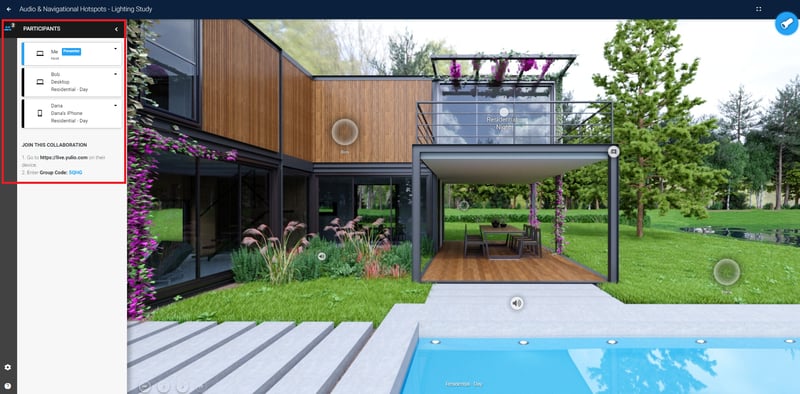
Collaborate lets you launch a secure live stream session and invite participants to join. You can see exactly what your clients are looking at in real-time, or lead the presentation yourself. You can also gather everyone together to look at any elements with our spotlight feature. The interface is simple to use with click or gaze navigation, so what really shines is your project.
## Step-by-Step Guide to Enabling Live Meeting
Start by launching a Collaborate session as you typically would. Once your session has started, click on the Start Chat button at the top of your screen to enable Live Meeting. When Live Meeting is enabled, any guests joining your Collaborate session can participate in voice chatting from a desktop, smartphone, tablet or VR headset.
Upon joining the Collaborate session, your guests will be prompted to allow use of their own microphone. If they do not allow use of their microphone, they can still join the session, however they will not be able to use the Live Meeting tool or hear the host or other guests.
Live meeting does have mic muting, so please ensure that your mic is unmuted during the session if you are wishing to speak. We also allow you to choose your preferred audio device like any meeting software. If you need to adjust your preferred microphone or speaker, select the Settings icon and choose from the available microphone and speaker options.
Please keep in mind, the Live Meeting function is not turned on by default. To use the tool, you must enable it each time you launch a Collaborate session.
## Maximizing Engagement During Your Live Meetings
Maximizing engagement during your Live Meetings is essential for productive sessions. Start by setting clear agendas and objectives for the meeting. Encourage active participation by asking questions, soliciting feedback, and facilitating discussions.
Utilize interactive features such as polls, Q&A sessions, and collaborative whiteboards to keep participants engaged. Additionally, consider incorporating multimedia elements such as videos and presentations to make the session more dynamic. Finally, ensure that all participants have the opportunity to speak and contribute, fostering an inclusive and collaborative environment.

## Start Maximizing your Client Meetings with Yulio Live Meeting and Collaborate
We hope that you have found this new feature breakdown helpful and that it gave you some new ideas on how you can take advantage of the many tools available to Yulio users. Yulio can give you the ability to create, enhance and present your projects in a memorable way and make your clients say “wow”.
[](https://cta-redirect.hubspot.com/cta/redirect/6015993/91e7269c-b483-4a63-883a-ffa419eaa40a)
Tags: [collaborate](https://blog.yulio.com/tag/collaborate), [communication](https://blog.yulio.com/tag/communication), [Vr for business meetings](https://blog.yulio.com/tag/vr-for-business-meetings)
Facebook Twitter LinkedIn
Author
---

### [Michael Astle](https://blog.yulio.com/author/michael-astle)
Michael is a writer for KiSP and Yulio, writing on topics such as renderings, The KITS collaborator, augmented reality, and virtual reality. With a personal interest in technology and design, Michael is always excited to see the newest technological tools and how they can bring ideas to life.
## YOU MIGHT ALSO LIKE THESE
##### [ Why Early VR Adopters Have the Advantage](https://blog.yulio.com/why-early-adopters-have-the-advantage)
##### [ Which VR Headset Is Right for You?](https://blog.yulio.com/what-to-do-about-vr-headsets)
##### [ VR in Commercial Furniture: Collaborate with Clients & Design Teams](https://blog.yulio.com/vr-in-commercial-furniture-collaborating-with-clients-and-design-team)
##### [ VR Goes to Work - Driving Business Through VR ROI](https://blog.yulio.com/vr-for-business-vr-roi)
- Company
- [Contact us](https://vr.yulio.com/contact-us/)
- [Privacy Policy](https://www.yulio.com/privacy-policy/)
- [Yulio Press Kit](https://www.yulio.com/press-kit/)
- [Terms and Conditions](https://www.yulio.com/terms-of-service/)
- Resources
- [Learning Portal](http://www.yulio.com/training/)
- [Blog](https://blog.yulio.com/)
- [Yulio Case Studies](https://www.yulio.com/vr-learning/casestudies/)
- [Knowledge Base](https://www.yulio.com/knowledgebase/)
- [Whitepapers](https://www.yulio.com/whitepapers/)
- [Visualization Services](https://www.yulio.com/visualization-services/)
- Product
- [Product Tour](https://www.yulio.com/product-tour/)
- [CAD Plugins](https://www.yulio.com/cad-plugins/)
- [VR Showcase](https://www.yulio.com/vr-showcase/)

©️ 2025 Yulio Inc. | Professional 3D to VR Software