---
title: Different ways you Can view a Yulio Project
description: Explore various ways to view Yulio VR projects, from desktops to mobile devices and VR headsets, making virtual reality accessible for everyone.
image: https://blog.yulio.com/hubfs/VR%20Project%20from%20CET%20Designer.png
---
[](https://www.yulio.com/)
- [Product Tour](https://www.yulio.com/product-tour/)
- [VR Showcase](https://www.yulio.com/vr-showcase/)
- [Pricing](https://www.yulio.com/pricing/)
- Resources
- [CAD Plugins](https://www.yulio.com/cad-plugins/)
- [Blog](https://blog.yulio.com)
- [Knowledge Base](https://www.yulio.com/knowledgebase/)
- [VR Content](https://try.yulio.com/partners/kisp/)
- [Sign In](https://vr.yulio.com/accounts/login/)
- [Free Trial](https://vr.yulio.com/free-trial/)
- [My Account](https://vr.yulio.com/)
# Different ways you Can view a Yulio Project
March 25, 2026
One issue we’ve heard constantly in the VR world is how people feel it can be hard to access the technology to view VR. Even though tech has gotten cheaper with portable VR headsets from Meta and other developers, it’s still just one more barrier for people to face before they can view VR projects. At Yulio we know this concern and our platform offers many options for people to view VR projects that go beyond the headset and make viewing VR projects as easy as possible.
In this article, we will highlight the different viewing options you have when you want to view a Yulio project. That way you can walk away with a better understanding of what we offer and that you see a way you can include Yulio in your workflow so you can start wowing them with the power of VR.
## Viewing option 1 – Desktop Version
One of our most popular ways to share and view Yulio VR projects is directly on a computer in a browser. There’s no need to download any special programs to view a Yulio project. You don’t need a computer with powerful graphics capabilities. All you need is a simple URL.
On the desktop version of a Yulio project, you can explore the projects in full 360 and interact with any hot spots or navigation tools easily by simply clicking in the project. Access full floor plans and still get a great sense of the space displayed in the project.
You can even embed these desktop experiences directly into your websites or portfolios if you are looking to showcase your projects to the widest audience.
*An example of how you can embed Yulio projects in a site online*
## Viewing Option 2 – Mobile Version
Another great way to view Yulio project using a piece of tech that most people in the business world have would be by using your mobile phone or tablet. You can follow the same URL that would link to the desktop version of a Yulio VR project and view it on your mobile device with tall the same functionality.
On your mobile device, you can still access all available hotspots, floorplans and navigation tools available on the desktop version, but you can also do even more. Take advantage of the gyroscopic technology in your device and use it to view Yulio projects in full 360 with motion. Or simply use the touchscreen to navigate if you prefer. If a VR project includes AR objects, you can open them directly from the project on your device and using your mobile device’s camera, display them in the environment around you. It’s a great way to get an audience viewing the project engaged.
## Viewing Option 3 – VR Headsets
While we wanted to showcase how you can view Yulio without a headset we still want to highlight every way you can view Yulio projects, and using a VR headset is the most immersive way to view a VR project by far. When you use a VR headset you get the ability to feel the scope and scale of a VR project in its entirety, something that can’t be found anywhere else. It’s the only way for a client to “step into” your project and get a sense of what It will be like to be in the final product.
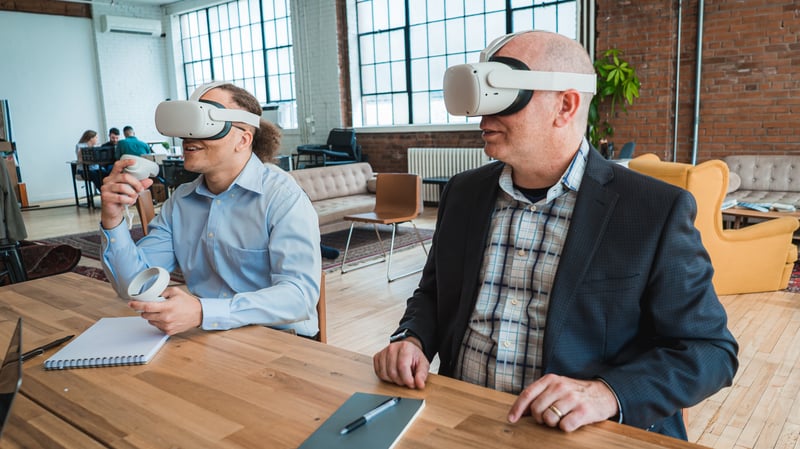
With the latest VR headsets such as the Meta Quest 3 and 3S, you get all this in a package that doesn’t require an external PC to power the experience. You also get access to AR objects which you can view in the headset, no longer needing your mobile device to view them in your environment. And like all other viewing methods, you can access all hotspots and navigation tools easily.
## Viewing Method 4 – Yulio Collaborate
Our final method of viewing is one that encompasses all the other methods we’ve gone over today. When you launch a Yulio Collaborate session, you create a session where multiple viewers can join and view the same project together and discuss the details. During a collaboration session, anyone can join from a computer, mobile device or headset. We give you access to special tools in collaboration sessions that make it easier to give feedback and discuss changes. You can leave notes directly in the project and use the markup tool to highlight key areas of discussion. Want to make sure everyone is looking at what you are? Use the spotlight tool to pull people to your viewpoint.
We also recently added live audio to Yulio Collaborate, meaning that you can now talk directly with people in the Collaborate session, making Yulio Collaborate a powerful remote meeting tool.
## Make Viewing VR Easy with Yulio
With Yulio, viewing and sharing your VR projects with anyone couldn’t be easier. No matter the tech your clients have, you have several options of how to share your projects with them and walk them through your concepts.
Want to see how easy it is? Try our [30-day free trial today.](https://vr.yulio.com/free-trial/)
[](https://cta-redirect.hubspot.com/cta/redirect/6015993/79cb25d5-1c9b-4293-b35c-22f30ada6e17)
Tags: [VR headset](https://blog.yulio.com/tag/vr-headset), [VR in architecture](https://blog.yulio.com/tag/vr-in-architecture), [VR in business](https://blog.yulio.com/tag/vr-in-business), [VR presentations](https://blog.yulio.com/tag/vr-presentations)
Facebook Twitter LinkedIn
Author
---

### [Michael Astle](https://blog.yulio.com/author/michael-astle)
Michael is a writer for KiSP and Yulio, writing on topics such as renderings, The KITS collaborator, augmented reality, and virtual reality. With a personal interest in technology and design, Michael is always excited to see the newest technological tools and how they can bring ideas to life.
## YOU MIGHT ALSO LIKE THESE
##### [ Top Tips for Maximizing VR Headset Comfort in Client Meetings](https://blog.yulio.com/vr-headset-comfort)
##### [ Transforming Business with VR: A Game Changer](https://blog.yulio.com/transforming-business-with-vr)
##### [ Meta Quest 3s Features Breakdown: A New Option for Cost-Effective VR](https://blog.yulio.com/meta-quest-3s-features)
##### [ What is the Best VR Headset in 2024 for Architecture](https://blog.yulio.com/what-is-the-best-vr-headset-for-architecture-in-2024)
- Company
- [Contact us](https://vr.yulio.com/contact-us/)
- [Privacy Policy](https://www.yulio.com/privacy-policy/)
- [Yulio Press Kit](https://www.yulio.com/press-kit/)
- [Terms and Conditions](https://www.yulio.com/terms-of-service/)
- Resources
- [Learning Portal](http://www.yulio.com/training/)
- [Blog](https://blog.yulio.com/)
- [Yulio Case Studies](https://www.yulio.com/vr-learning/casestudies/)
- [Knowledge Base](https://www.yulio.com/knowledgebase/)
- [Whitepapers](https://www.yulio.com/whitepapers/)
- [Visualization Services](https://www.yulio.com/visualization-services/)
- Product
- [Product Tour](https://www.yulio.com/product-tour/)
- [CAD Plugins](https://www.yulio.com/cad-plugins/)
- [VR Showcase](https://www.yulio.com/vr-showcase/)

©️ 2025 Yulio Inc. | Professional 3D to VR Software